

Moving Your Smart Home: A Room-by-Room Checklist for Transferring Tech
You’ve color-coded your boxes, hired a great moving crew, and even remembered to forward your mail. But there’s one part of your home that most moving checklists forget entirely: your smart home. The thermostats, video doorbells, mesh Wi-Fi nodes, smart locks, and voice assistants wired into every corner of your life don’t just pack themselves — and if you rush the process, you could spend your first week in a new house locked out of your own front door.
At Litemovers, we’ve helped hundreds of homeowners navigate tech-heavy moves. Here’s the digital moving checklist we wish someone had handed us years ago.
Before You Start Packing: The Pre-Move Digital Audit
The single biggest mistake people make with a smart home move is treating it like an afterthought. Before a single box gets taped, spend an hour doing a full audit of every connected device in your home.
Make a Device Inventory
Walk through every room with your phone and note each smart device: its make, model, and which app or hub controls it. Pay special attention to devices that are physically installed (thermostats, smart locks, in-wall light switches, hardwired security cameras) versus devices that simply plug in (smart plugs, smart speakers, robot vacuums).
- Installed devices — These come with you. Note which require a screwdriver and which are renter-owned vs. landlord-owned if applicable.
- Plug-in devices — These are straightforward to pack, but they’ll need to be re-paired at the new place.
- Subscription-linked devices — Cameras with cloud storage, alarm monitoring services, and video doorbells often have address-specific accounts. Plan ahead to transfer or cancel.
Screenshot Every Setting You Care About
Smart home apps don’t always carry your automations and schedules across a factory reset. Before you do anything else, open each app and screenshot (or export, if the app allows it) your routines, schedules, and custom configurations. This is especially important for thermostats like Ecobee or Nest that have learned your heating preferences over months or years.

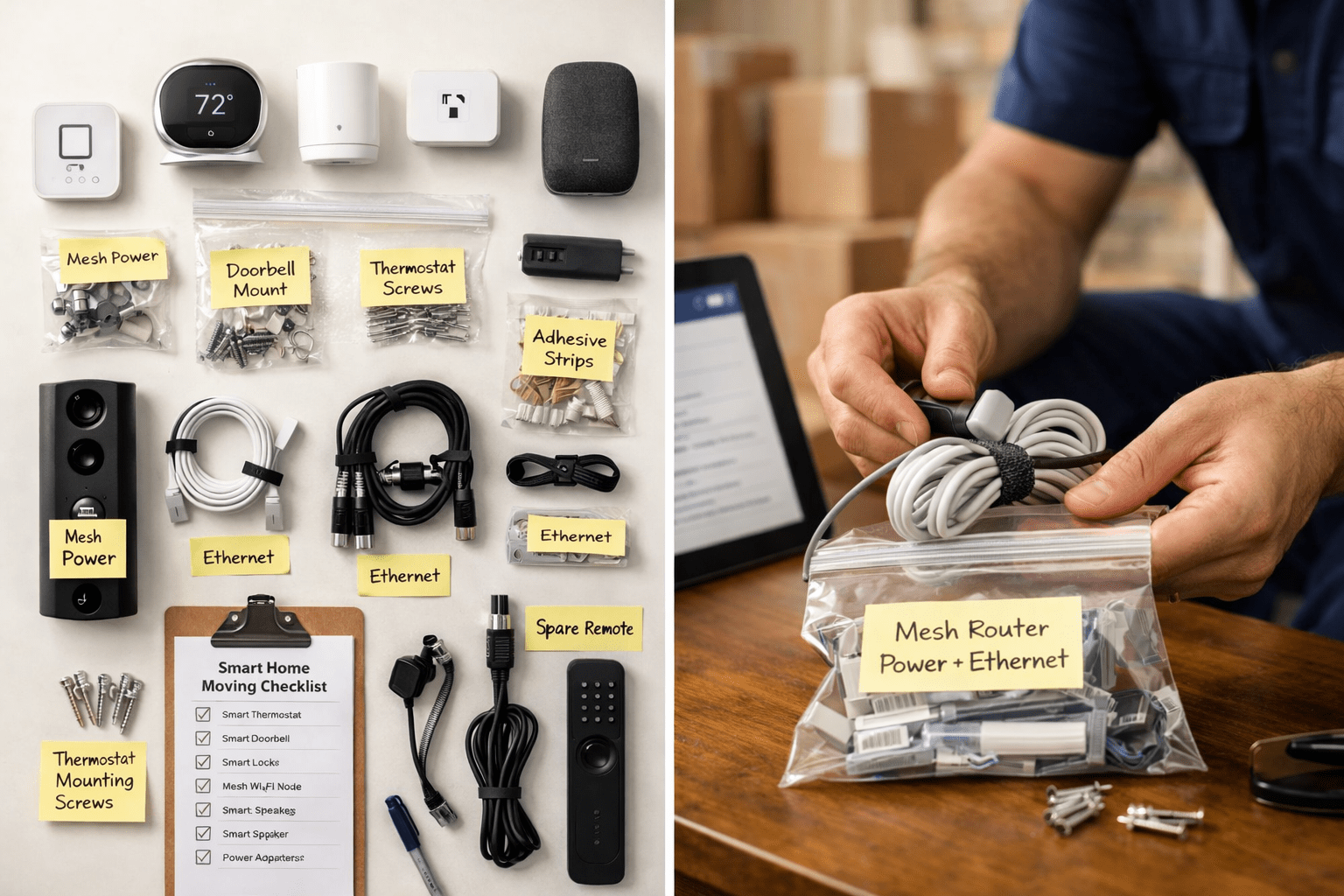
Moving a smart home takes more than packing boxes — it takes a plan. Photo courtesy of Litemovers.
Room-by-Room Breakdown: What to Do Before Moving Day
Entryway and Front Door
Your smart lock and video doorbell are high-priority items — and high-risk ones if mishandled.
- Smart lock: Delete all guest access codes before you move. If you’re leaving the lock behind (rental situation), perform a factory reset so the new residents can’t use your codes. If you’re bringing it with you, back up your code list, then do a full reset before reinstalling at the new address.
- Video doorbell: Most video doorbells (Ring, Google Nest, Arlo) are address-specific in their apps. You’ll need to remove the device from your current account and re-add it at the new address. Back up any saved video clips you want to keep before removing the device from your account — some platforms delete stored footage when a device is removed.
Living Room and Common Areas
- Smart speakers and displays (Amazon Echo, Google Nest Hub): These are simple to move — just unplug and pack. However, if you’re changing Wi-Fi networks (which you almost certainly will be), you’ll need to go through the setup process again in the new home. Note your preferred room assignments and routines so you can recreate them quickly.
- Smart TV: Log out of all streaming apps before disconnecting. At the new home, reconnecting to a new network is usually seamless, but clearing the old network profile prevents confusion if your new ISP assigns a similar SSID.
- Smart lighting (Philips Hue, LIFX, Lutron Caseta): Bulbs move with you; in-wall switches may or may not depending on your situation. Re-pairing bulbs to a new hub location is usually quick, but Hue bridge users should note that their bridge holds all scene data — keep it safe and padded during transit.
Kitchen
- Smart appliances: Many refrigerators, ovens, and dishwashers now have Wi-Fi connectivity. Unlink them from your account before the move if you’re leaving them behind (as is common with built-in appliances). Update the address in the app if the device is coming with you.
- Smart plugs: These are easy wins. Unplug, pack, and re-pair at the new home — most only take 60 seconds to set up on a new network.
Bedrooms
- Smart thermostat (Nest, Ecobee, Honeywell): This is the most complex device to move. You’ll need to disconnect it carefully from your current HVAC wiring and photograph each wire connection before removal. At the new home, reattachment depends entirely on that home’s HVAC system — a professional HVAC technician or your moving company’s partner network can help if you’re unsure. Reset the learning data and re-enter your schedule from your saved screenshots.
- Smart blinds or shades: If motorized blinds are hardwired, they may be staying with the house. If they’re battery-powered and yours to take, follow the manufacturer’s guide for removing them from their current hub before packing.
Garage and Exterior
- Smart garage door opener: If you’re taking it with you, factory reset and remove all vehicle authorizations. If you’re leaving it, do the same so the new owners start fresh.
- Outdoor security cameras: Remove from your account before uninstalling physically. Update the address in your monitoring service portal.
The Most Overlooked Step: Your Mesh Wi-Fi Network
Your mesh Wi-Fi system (Eero, Orbi, Google Nest Wifi) is the backbone of your entire smart home — and it’s frequently the last thing people think about. Every single smart device in your home is paired to your current network’s name (SSID) and password.
When you move, you have two options:
- Recreate the same SSID and password at the new home. This is the path of least resistance — your devices will reconnect automatically without any re-pairing. Just set up your router first, before unboxing a single smart device.
- Set up a brand-new network and re-pair everything. This is more work but gives you a clean slate. Use this approach if your old network had performance issues or you’re upgrading your router hardware.
For most people, Option 1 saves hours of frustration. The FTC’s consumer guidance on network security is a helpful resource if you want to use a move as an opportunity to strengthen your home network’s security practices.
At the New Home: The Power-On Order Matters
Don’t unbox everything at once. Follow this sequence to minimize headaches:
- Set up your router and confirm internet is working.
- Set up your smart home hub (if you use one — e.g., SmartThings, Home Assistant, Apple Home).
- Install and pair your thermostat.
- Install and pair smart locks and the video doorbell.
- Set up smart speakers and displays.
- Pair smart lighting, plugs, and remaining devices.
- Rebuild your automations and routines last, once everything is confirmed working.
Rushing this sequence — especially setting up devices before the hub is ready — is the number one cause of pairing failures and “ghost” devices that show as offline in your apps.
Don’t Forget: Update Your Service Addresses
Several smart home services are location-dependent and require an address update in their settings:
- Professional alarm monitoring (ADT, SimpliSafe, Ring Protect)
- Smart thermostat weather data (your thermostat uses local weather to optimize heating and cooling)
- Emergency contacts linked to your doorbell or security camera
- Local jurisdiction voice assistant settings (e.g., “Hey Google, call 911” routes to local dispatch)
A Smarter Move Starts Here
Moving a smart home is genuinely more complex than it was even five years ago — but with the right checklist and a calm, systematic approach, you can be fully reconnected and automated in your new space within a day or two of arrival.
At Litemovers, we understand that today’s homes are more than four walls and furniture. Our team is experienced in moves where the tech matters just as much as the sofa. Ready to get started? Contact Litemovers today for a free moving quote — and let us handle the heavy lifting while you focus on getting your smart home up and running.
© 2026 Litemovers. All rights reserved.

Comments are closed.